
Guide
VPN in Apple Shortcuts — connect FollowNet with one tap, Siri or automation
FollowNet works with the Shortcuts app: you can connect, disconnect or apply a Network Profile without opening the app. This guide shows practical shortcuts for work, travel and evenings, and how they fit together with Auto-connect.
What FollowNet can do in Shortcuts
The app adds three actions: Connect, Disconnect and Apply Profile. Apply Profile switches to one of the presets — Smart, Public Wi‑Fi, Travel, Restricted — or to a profile you created yourself. Actions can be run from the Shortcuts app, a Home Screen icon, Siri, the Action button on newer iPhones or a personal automation.
Shortcuts vs Auto-connect
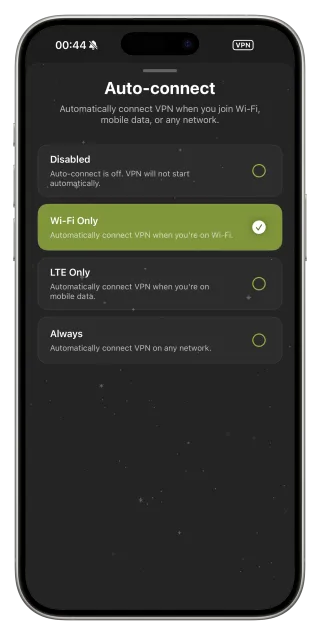
Auto-connect follows network rules: for example, turn on for untrusted Wi‑Fi. Shortcuts are deliberate actions or automations tied to time, place or a Focus mode. They complement each other: Auto-connect covers hotspots on its own, and a shortcut handles the cases rules cannot guess, like starting work or arriving at an airport.
Recipe: Work Focus
Create a personal automation: when the Work Focus turns on, run Apply Profile → your work profile, then Connect. When the Focus turns off, run Disconnect. This way the tunnel follows your schedule without a single tap.
Recipe: Arriving at the airport or hotel
Use a location automation for a terminal or hotel address: Apply Profile → Travel, then Connect. The Travel profile is tuned for unstable public networks and captive portals, so you do not have to remember settings while carrying luggage.
Recipe: Action button and Siri
Put a "Connect FollowNet" shortcut on the Action button or ask Siri to run it by name. That is the fastest way to switch the VPN on before opening a sensitive app on public Wi‑Fi.
Permissions and limits
The first time a shortcut runs, iOS may ask for permission — approve it once. Shortcuts cannot bypass a VPN configuration you removed or denied in Settings. On Free, if the weekly traffic is used up, Connect will not start the tunnel until the week resets or you upgrade.
Create your first VPN shortcut
- Open the Shortcuts app and tap +.
- Search for FollowNet and add Apply Profile, then Connect.
- Name the shortcut, for example "Safe Wi‑Fi".
- Run it once and approve the permission prompt.
- Optionally add it to the Home Screen, the Action button or an automation.
Ready-made ideas
| Trigger | Actions | Why |
|---|---|---|
| Work Focus on | Apply Profile → Connect | Tunnel follows your schedule |
| Arrive at airport | Apply Travel → Connect | Ready for public Wi‑Fi |
| Action button | Connect | One press before a sensitive app |
| Bedtime Focus | Disconnect | No tunnel when it is not needed |
Key points
- Three actions: Connect, Disconnect and Apply Profile
- Works with Siri, the Action button and automations
- Complements Auto-connect rather than replacing it
- Profiles include Smart, Public Wi‑Fi, Travel, Restricted and your own
- Free weekly traffic limits still apply
FAQ
Can I turn the VPN on with Siri?
Yes. Create a shortcut with the FollowNet Connect action and run it by its name through Siri.
Do I need to open the app for the shortcut to work?
No. Actions run in the background; the app just needs to be installed and the VPN configuration allowed.
Can a shortcut choose a server?
Shortcuts apply profiles and connect. Pick your server or Optimal location in the app; the shortcut uses it.
Will automations run without confirmation?
For most triggers iOS lets you disable "Ask Before Running". Some location triggers may still show a notification.