
Guide
VPN for remote work: protecting your iPhone in cafés, coworkings and on the road
Working remotely means email, documents and calls over networks you do not control. A personal VPN keeps that traffic encrypted. Here is a practical setup for remote workers — and where your employer’s rules take priority.
Why remote work needs encryption
Your day may start on home Wi‑Fi, continue in a café and end in a coworking space or on a train. Each network is run by someone else. A VPN encrypts the path for mail, chat, cloud documents and video calls, so the network operator cannot see which services you use or tamper with unencrypted traffic.
Personal VPN vs corporate VPN
If your company provides its own VPN for accessing internal systems, use it — company policy wins and FollowNet is not a replacement. FollowNet is a personal VPN: it protects your device on public networks and is ideal for freelancers, contractors and anyone without a corporate VPN.
Recommended setup
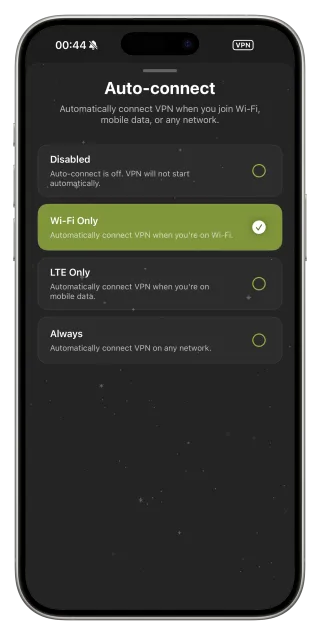
Set Auto-connect to Wi‑Fi Only so the VPN starts on every hotspot. Keep Protocol on Smart for reliability across different networks. For important calls, pick a server close to you or to the people you are calling — latency matters more than raw download speed for video.
Check call quality before it matters
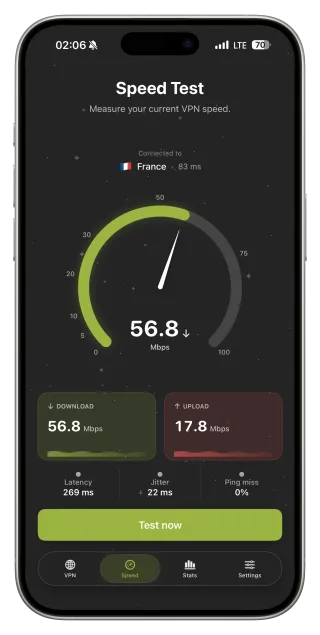
Run Speed Test ten minutes before a meeting. Look at latency and jitter, not just download: high jitter causes choppy audio even on a fast connection. If it looks bad, try another nearby server or switch to mobile data for the call.
Phone and laptop with one account
Use FollowNet on your iPhone for all apps, and the FollowNet Chrome extension on your laptop for browser-based work — webmail, Google Docs, Notion, CRMs. One Premium subscription covers up to five devices. Remember that the Chrome extension protects Chrome tabs only, not desktop apps like Slack or Zoom.
When Free is not enough
Daily video calls and large file uploads use a lot of traffic. If you work remotely every day, Premium’s unlimited traffic is the practical choice; Free works well for occasional café sessions.
Remote work checklist
- Install FollowNet on your iPhone and sign in.
- Set Auto-connect → Wi‑Fi Only.
- Add the FollowNet Chrome extension on your laptop with the same email.
- Before calls, run Speed Test and pick a nearby server if jitter is high.
- Follow your employer’s VPN policy for internal systems.
Key points
- Encrypts mail, chat, documents and calls on public networks
- Use your company’s VPN when policy requires it
- Auto-connect Wi‑Fi Only removes the need to remember
- Watch latency and jitter before important calls
- One account for iPhone and Chrome; Premium covers five devices
FAQ
Can I use FollowNet together with my company VPN?
iOS runs one VPN at a time. Use the company VPN when you need internal systems and FollowNet otherwise.
Does a VPN make video calls worse?
It adds a little latency. A nearby server keeps it minimal; Speed Test shows the real effect.
Does FollowNet protect Slack or Zoom on my laptop?
The Chrome extension covers browser tabs only. On iPhone, the app covers every app including Slack and Zoom.
Is my work data visible to FollowNet?
Traffic inside HTTPS remains encrypted end to end. What FollowNet processes is described in the Privacy Policy.