
Guide
What is a DNS leak, and how to choose DNS with a VPN on iPhone
Every time you open a site, your device first asks a DNS server for its address. If those lookups bypass the VPN, the network can still see which sites you visit — that is a DNS leak. Here is what it means in practice and how FollowNet’s DNS presets fit in.
DNS in one paragraph
DNS is the internet’s phone book. Your iPhone asks a resolver “what is the address of example.com?” before connecting. The resolver therefore learns every domain you look up. Without a VPN, that resolver is usually your internet provider’s or the Wi‑Fi network’s — and the lookups often travel unencrypted.
What a DNS leak is
A leak happens when the tunnel protects your traffic but name lookups still go to the local network’s resolver outside the tunnel. The content stays encrypted, yet the network sees the list of domains you visit. Leaks are usually caused by misconfigured apps, manually installed configuration profiles or OS edge cases.
How FollowNet handles DNS
While FollowNet is connected, you choose the resolver in Settings → DNS. Default uses the recommended resolver for compatibility. Cloudflare is fast and privacy-oriented, Google is widely available, Quad9 blocks known malicious domains, AdGuard blocks ads, trackers and phishing domains, and AdGuard Family adds adult-content filtering.
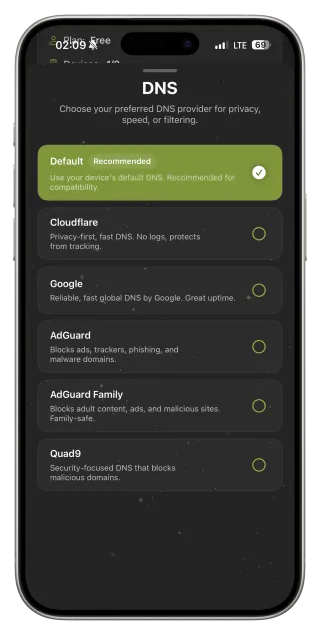
Choosing a resolver
For most people Default or Cloudflare is the right start. Pick Quad9 if you want extra protection from malicious sites, AdGuard if you want fewer ads in apps and browsers, AdGuard Family for children’s devices. If a bank site or company intranet stops working after a change, switch back to Default — filtering resolvers occasionally block legitimate domains.
DNS is not encryption
Changing DNS changes who answers lookups; it does not encrypt your traffic. The VPN tunnel does that. Combining the two gives you both: encrypted traffic and a resolver you chose. Network Profiles set both at once — Public Wi‑Fi uses Quad9, Travel uses Cloudflare.
Testing for leaks
Connect FollowNet, open a DNS leak test site in Safari and run the extended test. The resolvers it reports should belong to your chosen preset or the VPN provider, not your home internet provider or the hotel. Repeat after changing networks. Keep iOS updated and avoid installing random VPN configuration profiles from the web.
Set DNS in FollowNet
- Connect FollowNet.
- Open Settings → DNS.
- Choose a preset — for example Cloudflare or Quad9.
- Reload a few sites and run a DNS leak test in Safari.
- If something breaks, return to Default.
Which DNS preset for which goal
| Preset | Best for | Note |
|---|---|---|
| Default | Maximum compatibility | Recommended starting point |
| Cloudflare | Speed and privacy | Used by the Travel profile |
| Reliability | Widely available | |
| Quad9 | Blocking malicious domains | Used by Public Wi‑Fi and Restricted profiles |
| AdGuard | Fewer ads and trackers | May block some legitimate domains |
| AdGuard Family | Children’s devices | Adds adult-content filtering |
Key points
- A DNS leak reveals visited domains even when traffic is encrypted
- FollowNet lets you pick the resolver while connected
- Quad9 and AdGuard add security or ad filtering
- DNS choice does not replace the VPN’s encryption
- Test with a DNS leak site after changing settings
FAQ
Which DNS is the most private?
Privacy depends on the provider’s policy. Cloudflare and Quad9 publish privacy commitments; read them and choose what you trust.
Can AdGuard DNS replace an ad blocker?
It blocks many ad and tracker domains across all apps, but cannot remove ads served from the same domain as the content.
Why did a site stop working after changing DNS?
Filtering resolvers sometimes block a domain the site needs. Switch back to Default and the site should load.
Do I need to change DNS at all?
No. Default works well. DNS presets are an optional extra for filtering or preference.