
Guide
What is a VPN kill switch, and how does it work on iPhone and Chrome?
A kill switch is a safety net: if the VPN connection drops, it stops traffic from flowing unprotected. How it works depends on the platform. Here is what it means on iPhone, in FollowNet’s Chrome extension, and how to set things up so a drop does not expose you.
The problem a kill switch solves
VPN connections can drop — a weak signal, a network change, a server restart. For a few seconds apps may then send traffic outside the tunnel over the local network. On a hotspot you do not trust, that is exactly what you wanted to avoid. A kill switch blocks traffic until the tunnel is back.
On desktop: the Chrome Kill Switch
FollowNet’s Chrome extension includes a browser Kill Switch. When enabled, Chrome stops loading pages if the proxy connection fails, instead of silently falling back to a direct connection. It is scoped to Chrome: other browsers and desktop apps are not affected.
On iPhone: how iOS handles it
iOS manages VPN tunnels at the system level through Network Extension. FollowNet relies on that system behaviour plus Auto-connect rules to bring the tunnel back quickly: with Auto-connect set to Always, the VPN restarts automatically on every network. We do not promise a magic toggle that guarantees zero packets on every iOS edge case — no honest iOS VPN can.
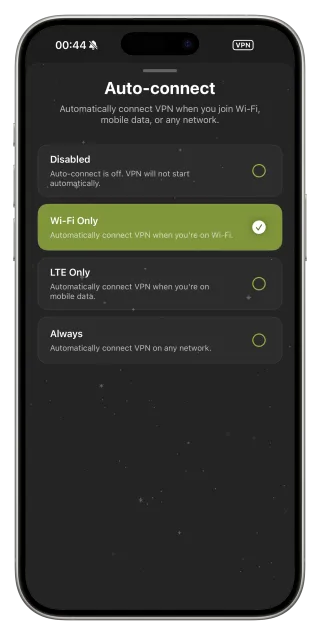
Settings that reduce leaks on iPhone
Use Auto-connect Always on untrusted networks. Keep Protocol on Smart, so a failing protocol is replaced instead of leaving you disconnected. On difficult networks apply the Restricted profile, which combines Smart Connect with Always and the fastest server. Add a Home Screen widget to see at a glance whether you are protected.
What a kill switch cannot do
It cannot prevent leaks you cause yourself — signing in to accounts, sharing location or installing tracking apps. It also cannot keep you online on a broken network; it only keeps traffic from going out unprotected while the VPN reconnects.
Turn on the protections
- iPhone: Settings → Auto-connect → Always.
- iPhone: keep Protocol on Smart, or apply the Restricted profile.
- Chrome: open the FollowNet extension settings and enable Kill Switch.
- Add the FollowNet widget to your Home Screen to watch status.
Kill switch behaviour by platform
| FollowNet iOS | FollowNet Chrome | |
|---|---|---|
| Scope | Whole device while connected | Chrome tabs |
| Mechanism | iOS Network Extension + Auto-connect | Browser Kill Switch setting |
| If the connection drops | Auto-connect re-establishes the tunnel | Chrome stops loading pages |
| Recommended setting | Auto-connect Always or Restricted profile | Kill Switch on |
Key points
- A kill switch blocks traffic when the VPN drops
- Chrome extension: explicit browser Kill Switch
- iPhone: iOS Network Extension plus Auto-connect Always
- Smart Connect replaces a failing protocol automatically
- No kill switch protects against your own logins and apps
FAQ
Does FollowNet have a kill switch on iPhone?
FollowNet uses iOS’s system VPN handling with Auto-connect to restore the tunnel; the explicit Kill Switch toggle is in the Chrome extension.
Will a kill switch block my internet entirely?
Only while the VPN is reconnecting. If the network itself is down, you will be offline either way.
Should I always use a kill switch?
On untrusted networks, yes. At home it is optional.
Does the Chrome Kill Switch affect other browsers?
No, it only applies to Chrome with the FollowNet extension.