
Guide
VPN for beginners: set up FollowNet on iPhone in five minutes
Never used a VPN before? You do not need to understand protocols to be protected. This beginner guide covers installation, the one iOS permission you will see, what the main screen means and the three settings worth knowing.
What you need
An iPhone or iPad with a recent version of iOS, an email address and about five minutes. FollowNet Free does not ask for a credit card. You sign in with a one-time code sent to your email, so there is no password to invent or forget.
The iOS permission prompt
The first time you tap Connect, iOS shows a message that FollowNet wants to add a VPN configuration. This is normal for every VPN on the App Store — it is how Apple lets an app create a system-wide tunnel. Tap Allow and confirm with Face ID or your passcode. You only do this once; afterwards Connect works with a single tap.
Reading the main screen
When the big button turns green and the timer starts, you are connected. Under the timer FollowNet shows the protocol in use, and at the bottom the current location with its ping. The VPN icon in the iPhone status bar confirms the tunnel is up. To disconnect, tap the button again.
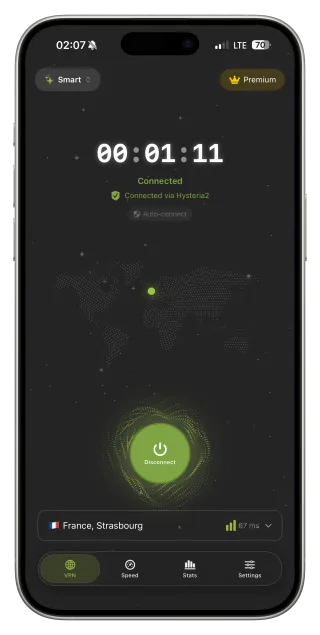
Three settings worth knowing
Protocol: leave it on Smart — FollowNet picks what works on each network. Auto-connect: choose Wi‑Fi Only so the VPN starts whenever you join a hotspot. Location: use Optimal location for speed, or pick a country from the list. Everything else — DNS, Network Profiles, Shortcuts — can wait until you are curious.
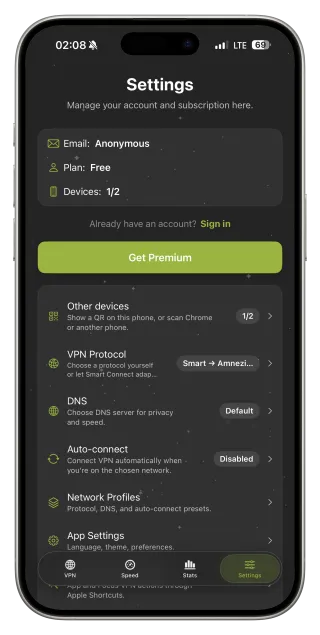
If something does not work
Most problems have simple causes. On hotel or airport Wi‑Fi, first complete the login page in Safari, then connect. If the connection hangs, keep Smart on or try another location. If you are on the Free plan, check that weekly traffic is left on the Statistics screen. Restarting Wi‑Fi fixes many one-off glitches.
Using it on other devices
The same account works on your iPad and in the FollowNet Chrome extension on a computer. On a new device, sign in with the same email or scan a QR code from Settings → Other devices on your phone. The Chrome extension protects browser tabs only; the iPhone and iPad apps protect the whole device.
Your first connection, step by step
- Download FollowNet from the App Store and open it.
- Enter your email and type the code you receive.
- Tap the large Connect button.
- Tap Allow on the iOS prompt and confirm with Face ID or passcode.
- Wait for the timer to start and the VPN icon to appear in the status bar.
- Optional: Settings → Auto-connect → Wi‑Fi Only.
Key points
- No credit card and no password: sign in with an email code
- Allow the iOS VPN prompt once, then connect with one tap
- Keep Protocol on Smart — no technical choices needed
- Auto-connect Wi‑Fi Only protects you on hotspots automatically
- The same account works on iPad and in Chrome
FAQ
Is it safe to allow the VPN configuration?
Yes, for an App Store VPN this is the standard Apple mechanism. You can remove it any time in iOS Settings → VPN or by deleting the app.
Do I need to change any technical settings?
No. The defaults — Smart protocol and Optimal location — work for most people. Auto-connect is the only setting most beginners benefit from changing.
How do I know the VPN is on?
The FollowNet button is green with a running timer and the VPN icon appears in the iPhone status bar.
What happens when Free traffic runs out?
New connections pause until the weekly allowance resets, or you can upgrade to Premium for unlimited traffic.