
Guide
VPN not connecting on iPhone? A step-by-step fix
When a VPN refuses to connect, the cause is almost always one of five things: the iOS permission, a Wi‑Fi login page, the traffic limit, a network that blocks the protocol, or a temporary glitch. Work through this list in order — most problems are solved in the first three steps.
1. Check the iOS VPN permission
If you tapped “Don’t Allow” on the iOS prompt, or the VPN configuration was removed, FollowNet cannot start the tunnel. Open FollowNet and tap Connect again — iOS will ask once more. You can also check iOS Settings → VPN to see whether the FollowNet configuration is present.
2. Finish any Wi‑Fi login page
Hotels, airports, trains and some cafés require you to sign in on a captive portal before the internet works. Disconnect the VPN, open Safari, complete the page, confirm a normal site loads, then connect again.
3. Check your traffic allowance
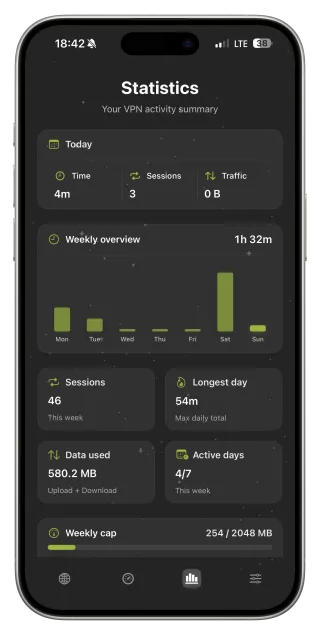
On the Free plan, new connections pause when the weekly allowance is used up. Open the Statistics screen to see what is left. Wait for the weekly reset or upgrade to Premium for unlimited traffic.
4. Let Smart Connect handle the network
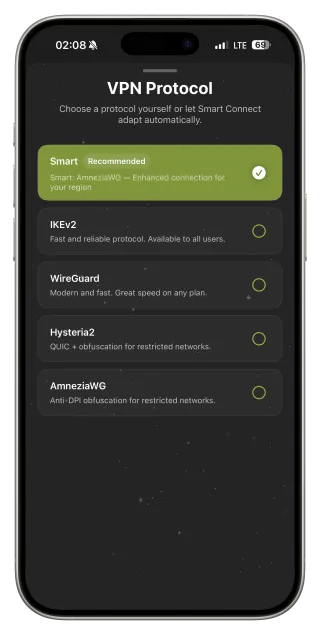
Some networks block or slow specific protocols. Set Protocol to Smart so FollowNet can fall back automatically. If it still fails, apply the Restricted profile, or manually try AmneziaWG, Hysteria2 or VLESS Reality. Also try another server — one location may be busy or temporarily unavailable.
5. Rule out a glitch
Toggle Airplane mode on and off, forget and rejoin the Wi‑Fi network, or switch to mobile data to see whether the problem is the network. Make sure FollowNet and iOS are up to date. As a last resort, remove the VPN configuration in iOS Settings → VPN and connect again in FollowNet to recreate it.
Connected but nothing loads
If FollowNet shows Connected but pages do not open, the network is probably interfering with the protocol. Switch protocol or server, and run Speed Test to confirm traffic passes. FollowNet checks real traffic before treating a session as healthy, but networks can change mid-session.
Quick fix checklist
- Tap Connect and allow the VPN configuration if iOS asks.
- Disconnect, finish the Wi‑Fi login page in Safari, reconnect.
- Check remaining weekly traffic on the Statistics screen (Free plan).
- Set Protocol to Smart, or apply the Restricted profile.
- Choose a different server.
- Toggle Airplane mode or switch to mobile data to test the network.
- Update FollowNet and iOS; recreate the VPN configuration if needed.
Symptom and likely cause
| Symptom | Likely cause | Fix |
|---|---|---|
| Connect does nothing | VPN permission missing | Allow the iOS prompt |
| Works on LTE, not on Wi‑Fi | Captive portal or blocked protocol | Finish login; use Smart or Restricted |
| Stopped working mid-week | Free allowance used | Wait for reset or upgrade |
| Connected but no pages | Protocol interfered with | Switch protocol or server |
| Fails everywhere | Temporary glitch | Airplane mode, update, recreate configuration |
Key points
- Most failures: permission, login page or traffic limit
- Smart Connect and the Restricted profile handle difficult networks
- Try another server before assuming the app is broken
- Test on mobile data to tell network problems from app problems
- Recreating the VPN configuration fixes rare iOS glitches
FAQ
Why does the VPN work on LTE but not on Wi‑Fi?
The Wi‑Fi network probably needs a login page or blocks the protocol. Finish the login and use Smart Connect.
I accidentally tapped “Don’t Allow”. What now?
Tap Connect in FollowNet again; iOS will show the prompt again.
Does reinstalling the app help?
Rarely necessary. Recreating the VPN configuration from iOS Settings → VPN usually does the same job.
Who can I contact if nothing helps?
Write to [email protected] with your network type, protocol and the time it happened.